
Proctor Guide
Everything a proctor needs to run the practice SAT: what the morning looks like, what to say, and what to do if something goes wrong. Keep this guide open during the test. Franklin Yard is on call by phone the whole time.
At a glance
- The test
- A full-length digital SAT practice test, taken in the browser on the testing platform.
- Length & structure
-
2 hours 24 minutes of testing. Plan for about 2 hours 45 minutes in the room with setup.
- Reading & Writing: two modules of 32 minutes
- Break: 10 minutes
- Math: two modules of 35 minutes
The platform times each module and moves testers forward automatically, except after the break: testers wait to click Resume Testing until you tell them, so the room starts the last section together and finishes at roughly the same time.
- Testers will need
- A device, charged, with chargers available. A pencil and scratch paper. A calculator if they want one; the test also has a built-in graphing calculator.
- Testers use
- Google Chrome on their device, and the test link you share with them.
- Scores
- Testers see their scores on screen as soon as they finish. They can return to their account later to review. You will have access through the proctor account.
- Help
- Franklin Yard is on call by phone for the whole test.
The platform does most of the proctoring. It runs every tester's timers, moves them from module to module, and shows their scores at the end. Your job is to get everyone started cleanly, keep the room settled, troubleshoot basic issues, and call us if anything stops a tester from testing.
Before the test
Things to prepare
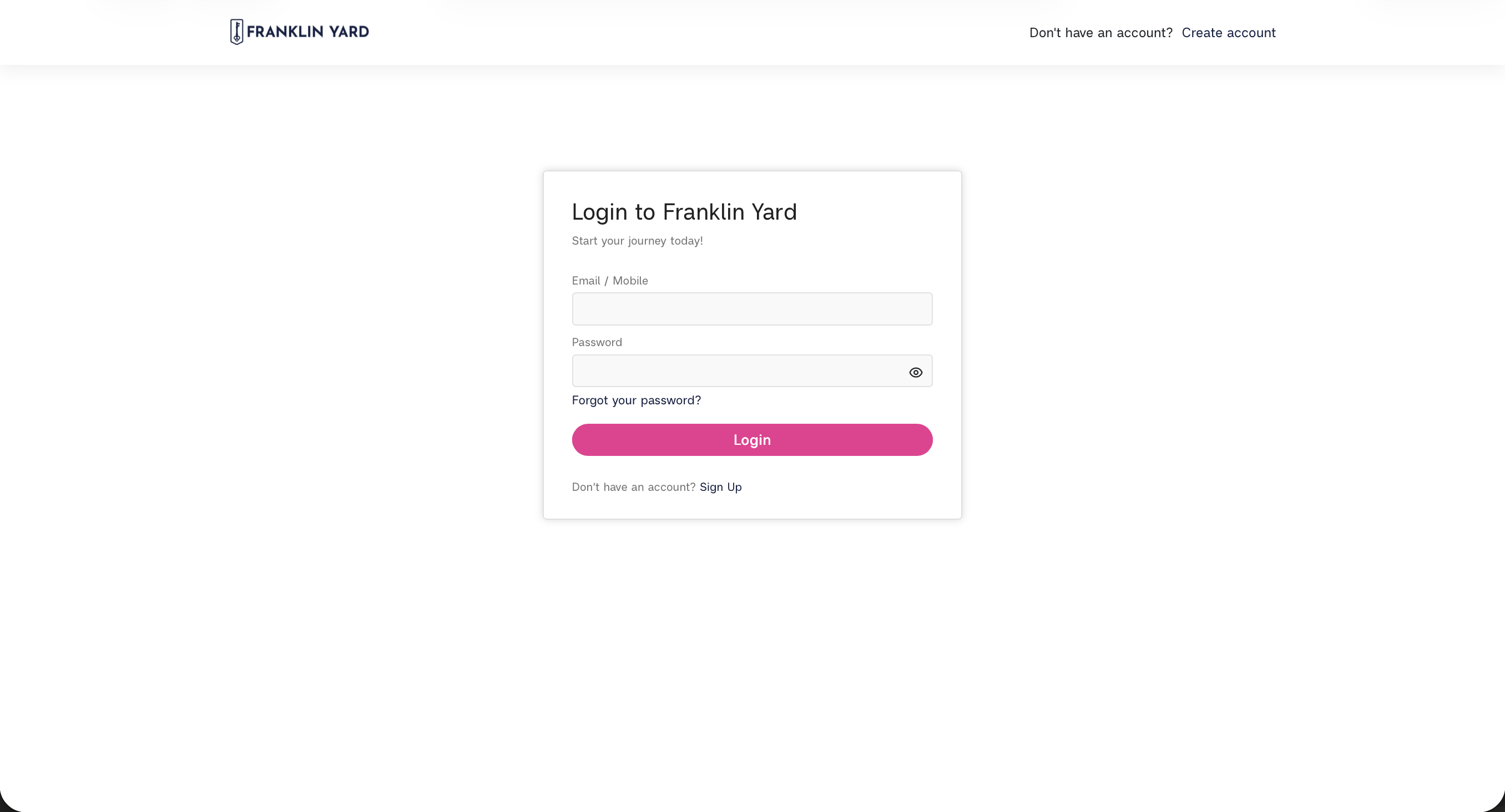
- Test access to the proctor account at https://franklinyard.edison.so/signin.
- Share this proctoring guide with all proctors.
- Ensure testers will have or are provided with scrap paper and pencils.
- Have loaner devices prepared for each room, charged, with Chrome installed.
The morning
- Have the test link ready to share with testers. Franklin Yard should have provided it to you by email. Don't share it until you're ready to start the test.
- Have a clock or timer visible to the room.
- Have Franklin Yard's numbers handy: Josh (primary), 610-773-7992 | Chloè, 610-904-8406
- Ensure testers have fully-charged devices ready
The test runs on each tester's own timer. Rooms don't need to start at the same second, and a tester who starts a minute late isn't behind anyone but themselves.
Running the test
Six stages. Move to the next one as the test progresses. Your timers keep the room together; the platform keeps each tester's actual time. For extended-time testers, see Extended time testing.
Stage 1 of 6
Prepare the room
Before you start the test.
Say
Good morning. Today you're taking a full-length practice SAT. It's practice: it doesn't count for anything except giving you a sense of your SAT, so do your best.
The test runs about two and a half hours, with a ten-minute break in the middle. Please put phones away, close everything on your device except Chrome. Then, go to the link I'm sharing now and wait for my instructions.
Do
- Devices out and charged; chargers plugged in where testers need them.
- Nothing open except Chrome.
- Have testers wait on the link landing page.
Watch for
- Anyone without a fully-charged device. Better to plug in or hand out a loaner now, not later.
Stage 2 of 6
Launch the test
About five minutes.
Say
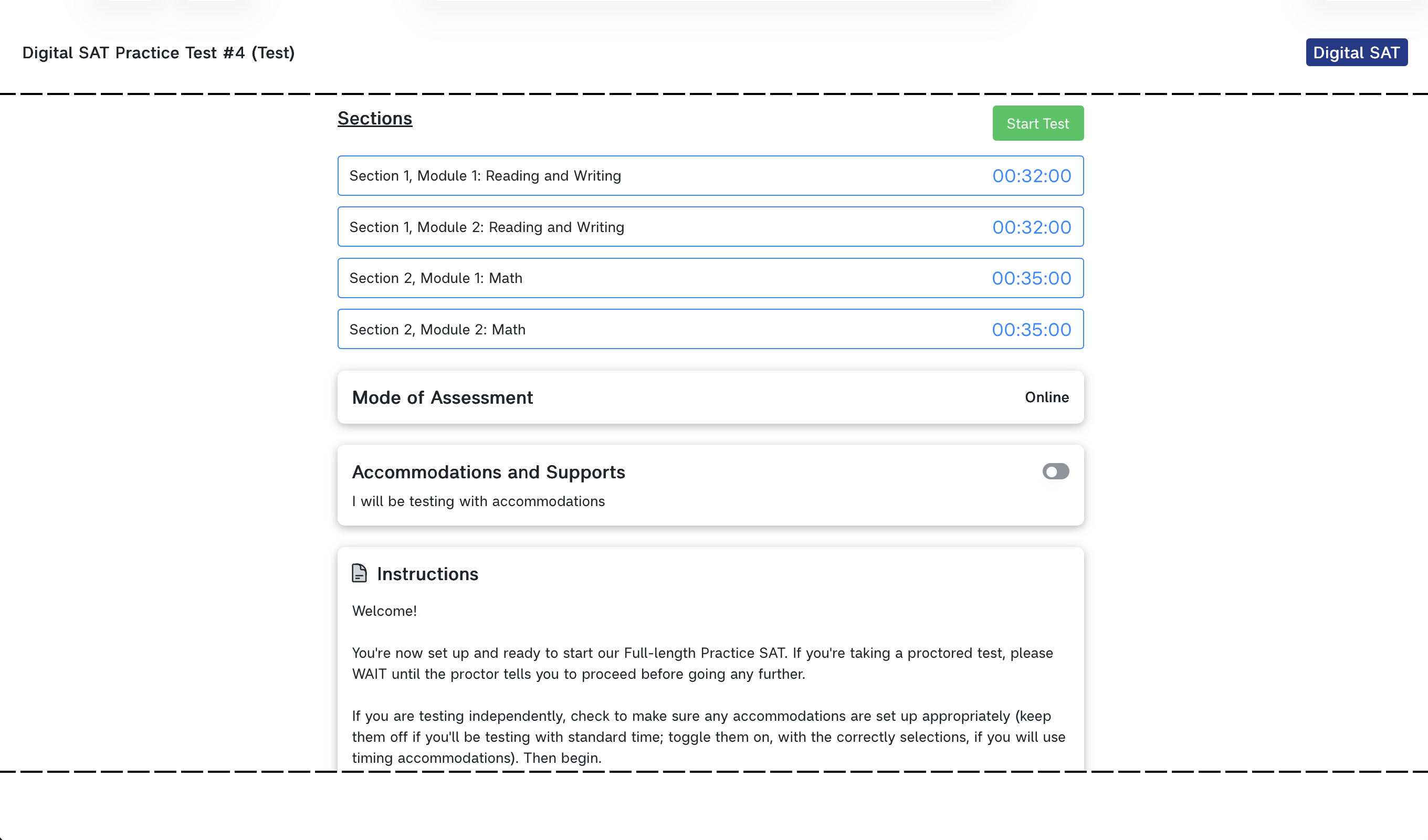
On the landing page, enter your full first and last name for "Name" and your school email address under "Email". Please be careful to avoid typos. Once you click "Start Test" you'll land on the test's start page, which shows section times and has a green "Start Test" button. Do not press Start Test yet. Wait for me.
Do
- Remind testers to double-check their name and email before entering the test.
- Make sure standard-time testers know not to toggle on accommodations.
- Walk the room. Everyone should be on the test start page, not inside the test.
Watch for
- Anyone who pressed Start Test early. They're fine, just a minute ahead of the room. Let them keep going.
Stage 3 of 6
Reading & Writing
Two modules of 32 minutes. Set your timer for 64 minutes.
Say
The test has two sections, Reading & Writing and then Math, with a break in between. Reading & Writing is first: two modules of 32 minutes each. The test times each module and moves you to the next one automatically when time runs out. If you finish with time left, go back and check your answers.
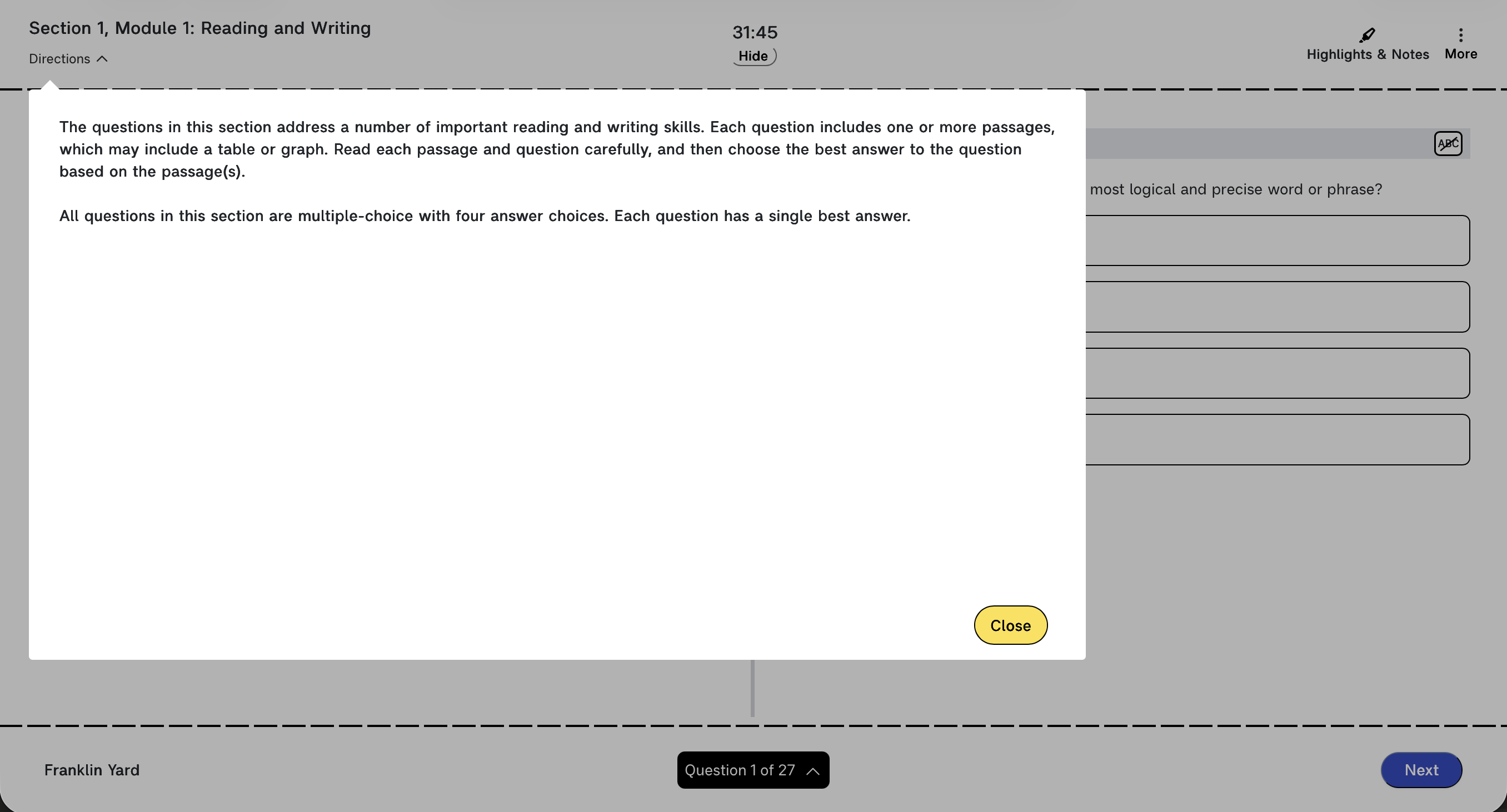
Once you click Start Test, the timer will start and instructions will appear; close them to continue testing. As you test you can flag questions to come back to, cross out answer choices, and use the bar at the bottom to jump between questions.
Press Start Test now.
Do
- Start your 64-minute timer as they press Start Test.
- Let testers know how you'd like them to notify you if they need help. Keep the room quiet. Walk it periodically.
Watch for
- Timers ending early during the test or freezing screens between sections. See troubleshooting steps in those cases.
Stage 4 of 6
Break
10 minutes. Set your timer.
Say at the start of the break
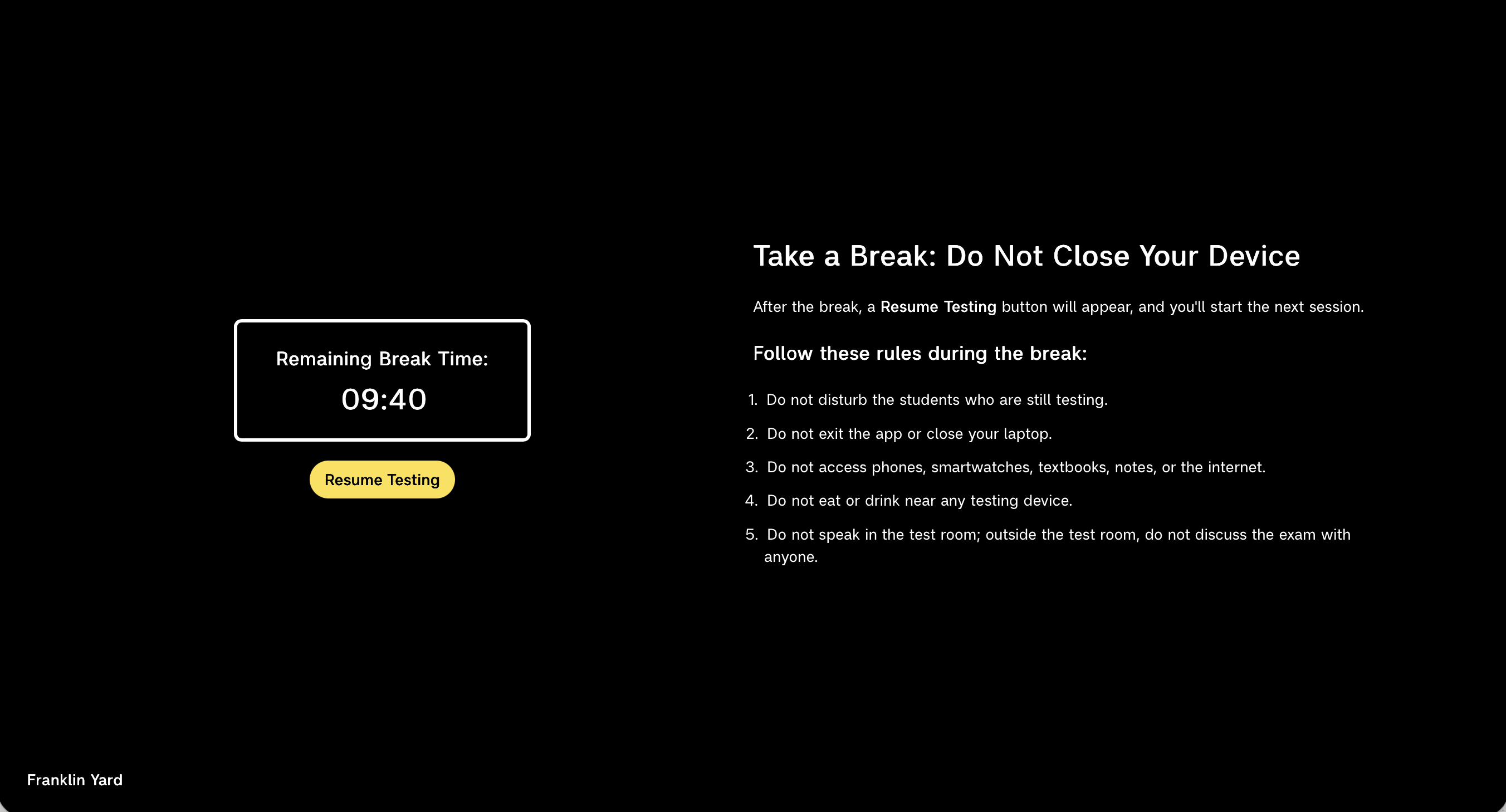
Your Reading & Writing section should be finished, and you should see the break screen. You have ten minutes. Leave your device with the page open, and don't close the tab or navigate away from the screen. When the break ends, we will click Resume Testing to start the Math section.
Say near the end of the break
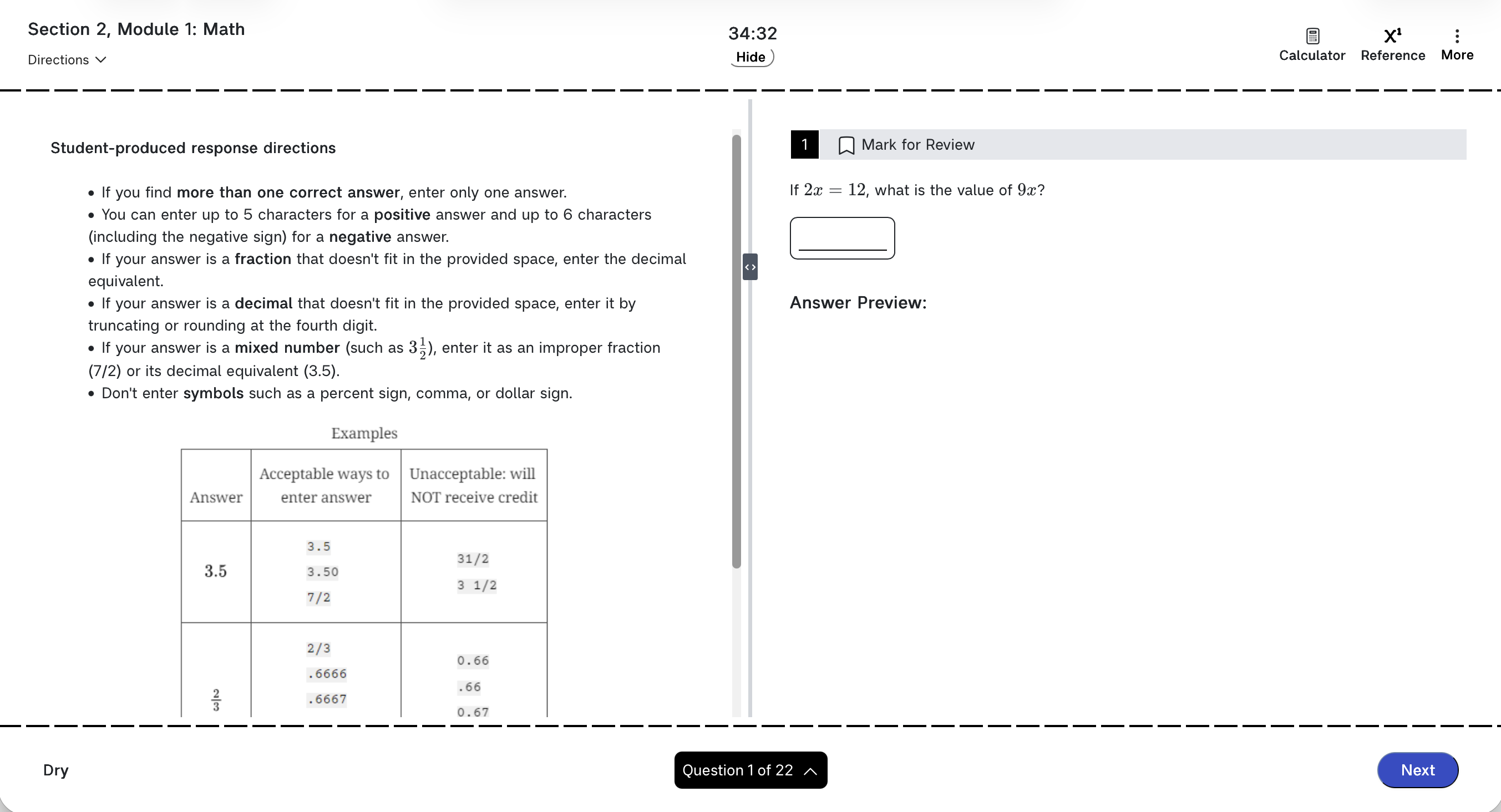
Before it starts, a quick preview of Math: there are two modules of 35 minutes each, with the same automatic timing. About a quarter of the questions aren't multiple choice; you'll type your answer into a box, and the instructions for entering it appear on screen when you need them. There's a built-in graphing calculator and a reference sheet of formulas, both under buttons on the screen, and you're welcome to use your own calculator and scratch paper.
Once the timer ends, wait for me to instruct you to click the yellow Resume Testing button.
Do
- Start a 10-minute timer before making announcements.
- Decide what your break policy is (re: bathroom use, leaving the room, etc.).
- Once time expires, testers won't automatically proceed to the Math section until they click the yellow "Resume Testing" button. Use this to make sure testers start the Math section together.
Watch for
- A tester who closed the tab. If they truly closed out and you can't navigate back, they'll need to do a password reset to regain account access to resume. See troubleshooting steps.
Stage 5 of 6
Math
Two modules of 35 minutes. Set a 70-minute timer.
Say
If you have not yet clicked Resume Testing, do so now to start the Math section. I'll set a timer for 70 minutes, which will bring us to the end of the test. When the test ends, it'll take you straight to your scores. Do not close the browser or leave until we instruct you to.
Do
- Start your 70-minute timer. Walk the room periodically.
Watch for
- The calculator or reference sheet that won't close. See troubleshooting steps.
Stage 6 of 6
Finishing
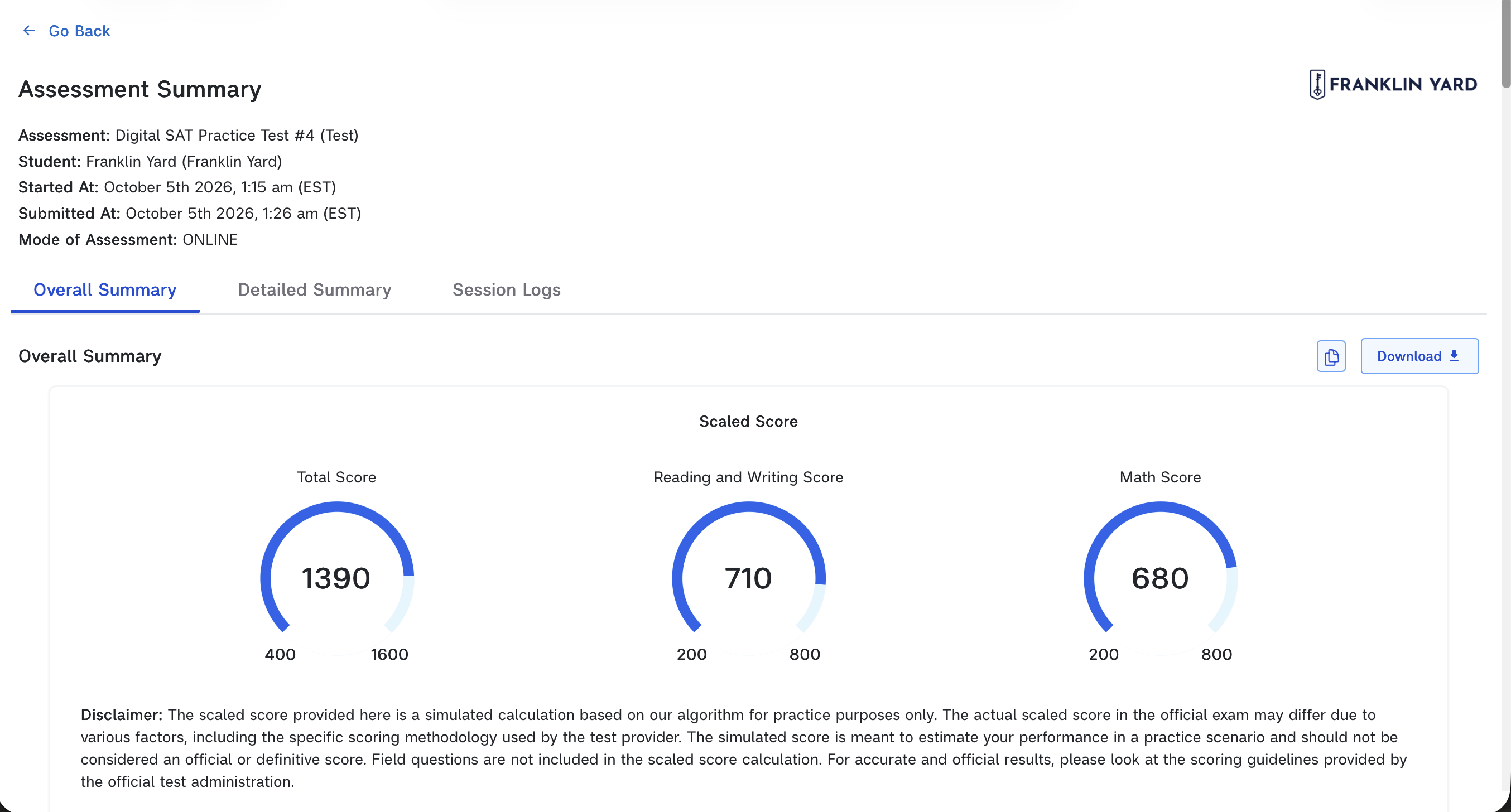
When your timer ends, testers should be looking at their scores.
Say
That's the test. Your scores are on your screen now, and you'll be able to look at them again later. Your family will get a follow-up about what they mean. And remember that this was only a practice test. Neither a good nor a bad score today guarantees how you'll do on your official test. These practice results are just for you to figure out where you can grow. Enjoy the rest of your day.
Do
- Dismiss the room the way your school normally would.
- Make a note of anything unusual: a tester who restarted, switched devices, or started late. Let Josh know, so we can make sure every tester's scores are complete.
Extended time testing
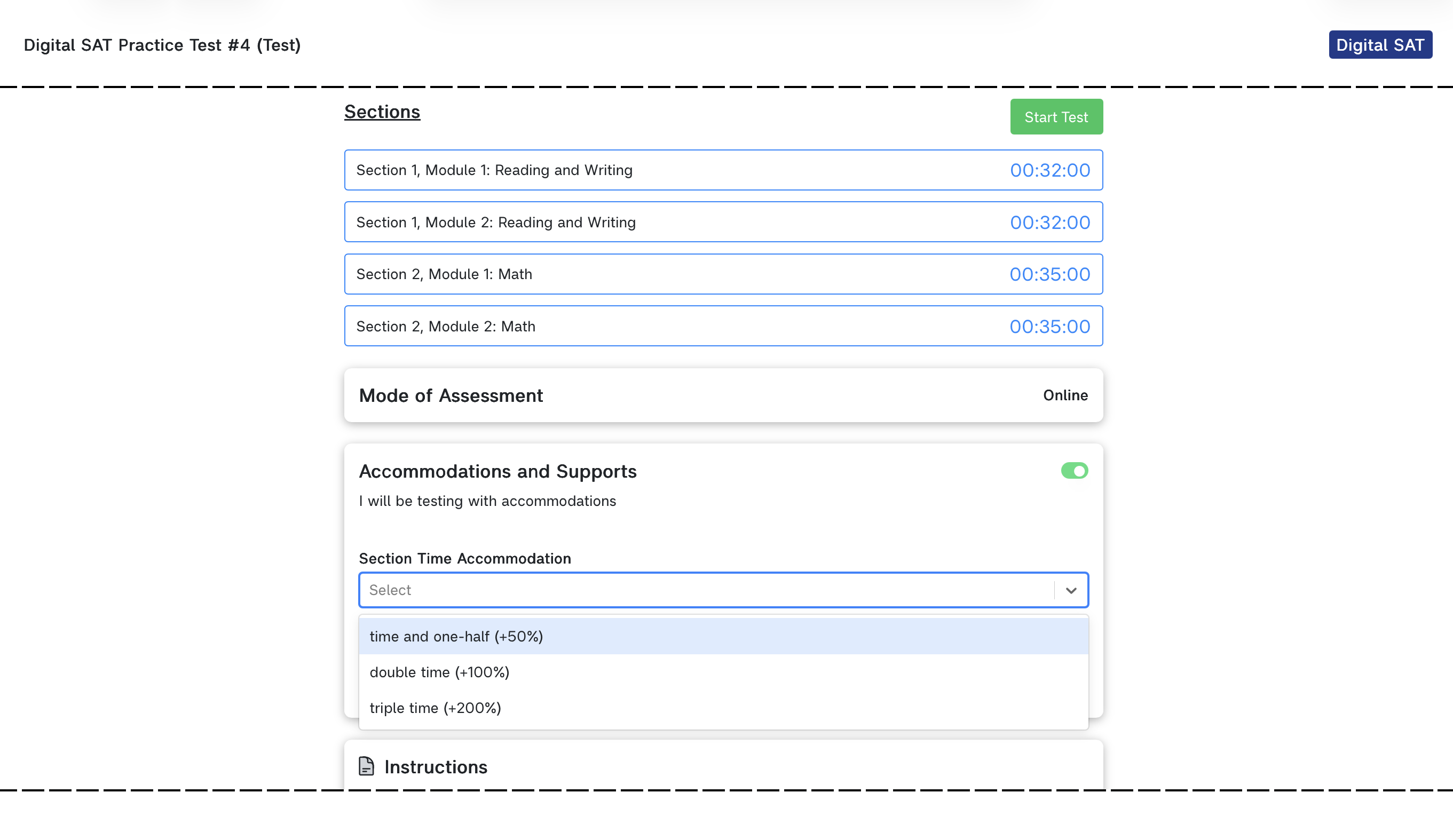
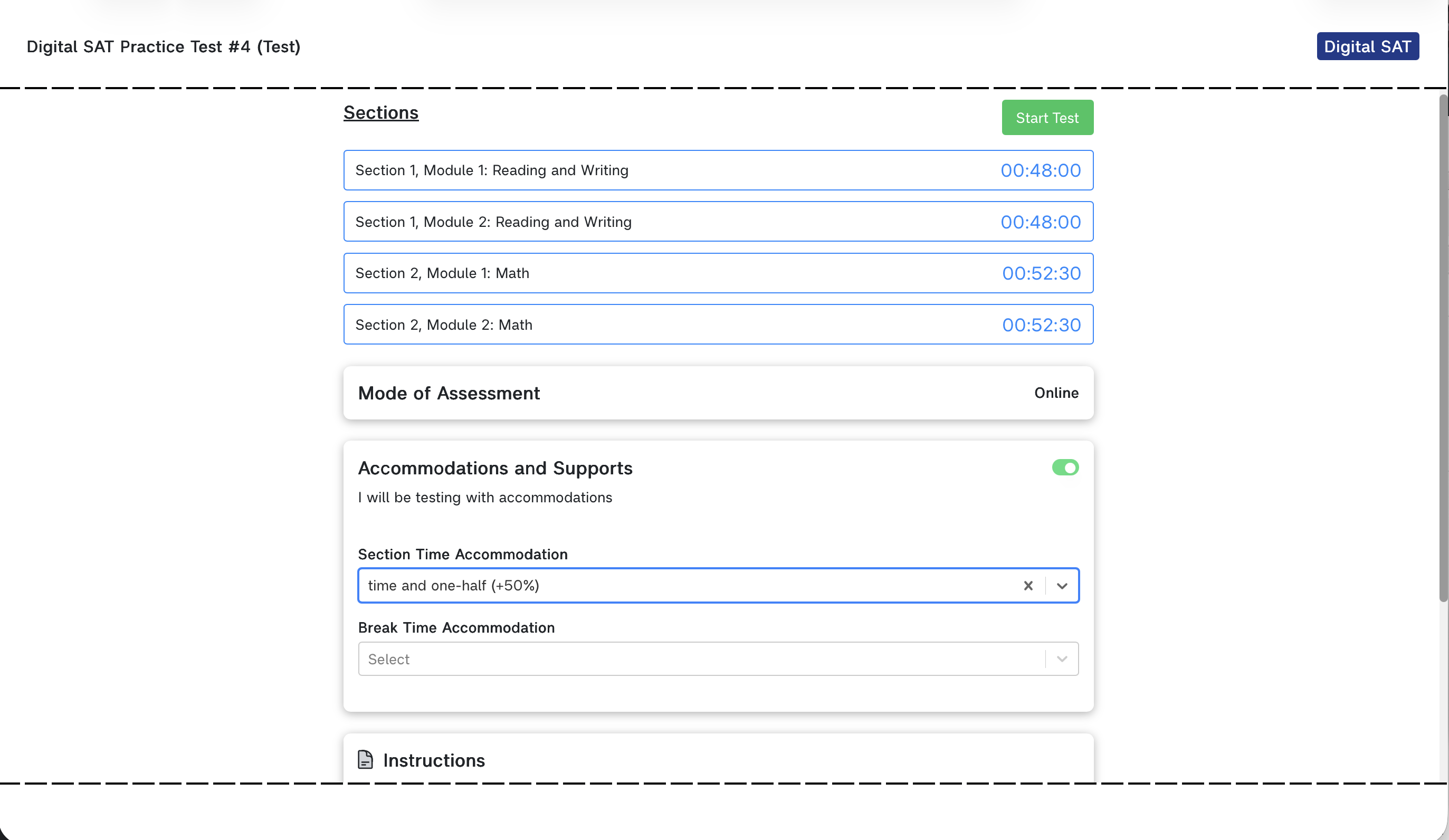
For testers with extended time accommodations, you should instruct them to toggle on Accommodations and Supports on the test start page. They will use the dropdown under Section Time Accommodation to select the specific accommodation they're using (usually time and one-half). When they click "Start Test," they will proceed through the same test taken by standard-time testers, but with timers updated for extended-time testing.
| Section | Standard time | Extended time (+50%) |
|---|---|---|
| Reading & Writing, module 1 | 32 min | 48 min |
| Reading & Writing, module 2 | 32 min | 48 min |
| Break | 10 min | 10 min |
| Math, module 1 | 35 min | 52 min 30 sec |
| Math, module 2 | 35 min | 52 min 30 sec |
Aside from providing more time per section, the test otherwise proceeds the same as it would under standard time conditions. We encourage you to use the same step-by-step proctoring instructions provided on Running the test.
After the test
Testers and their results
Testers see their scores the moment they finish, including their answers question by question. You will also have access to all their scores and score breakdowns in your proctor account. To return to their test, testers will all need to use the Forgot Password function to set a personal password.
In your proctor account, each tester's scores are under the User Reports column of the test roster. Click Review next to a tester once their test is completed.
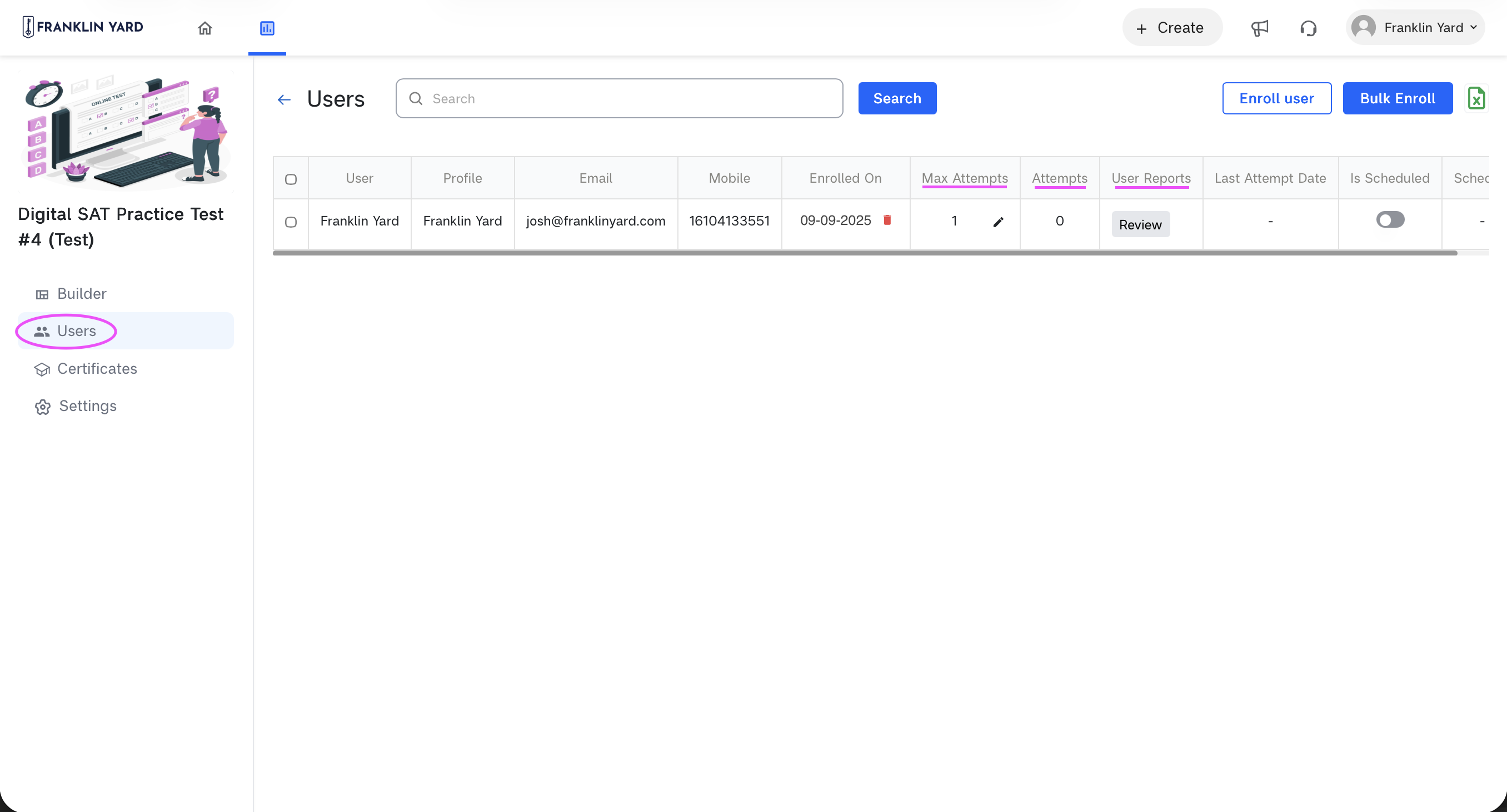
Scores will be accessible under the User Reports column by clicking on Review once tests are completed.
- You will have access to individual tester score reports and can export a csv of all testers and results.
- Franklin Yard will follow up after the test with a performance summary.
- Franklin Yard will email families with information on how to access accounts to view results, as well as offer to help families interpret results
- Please email Franklin Yard about any issues or anything unusual during the test (a restart, a device swap, a late start), so we can make sure every tester's scores are complete.
Your proctor account
The school has its own login to the testing platform; Franklin Yard sent those credentials by email. It shows the testers in the assessment, who has started and finished, and each tester's scores once they're done. It can be helpful during the test but is primarily provided so you can look up results afterward.
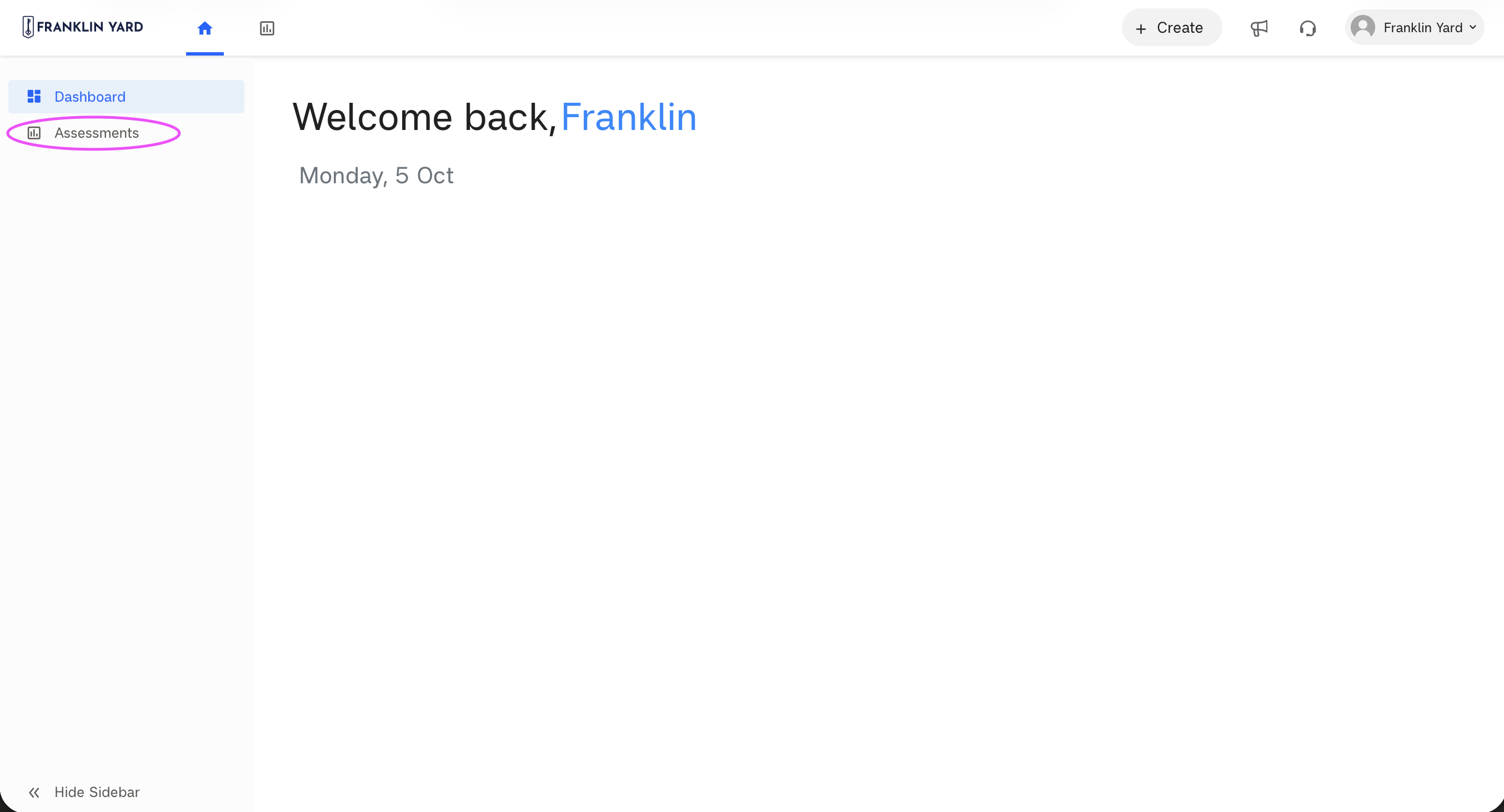
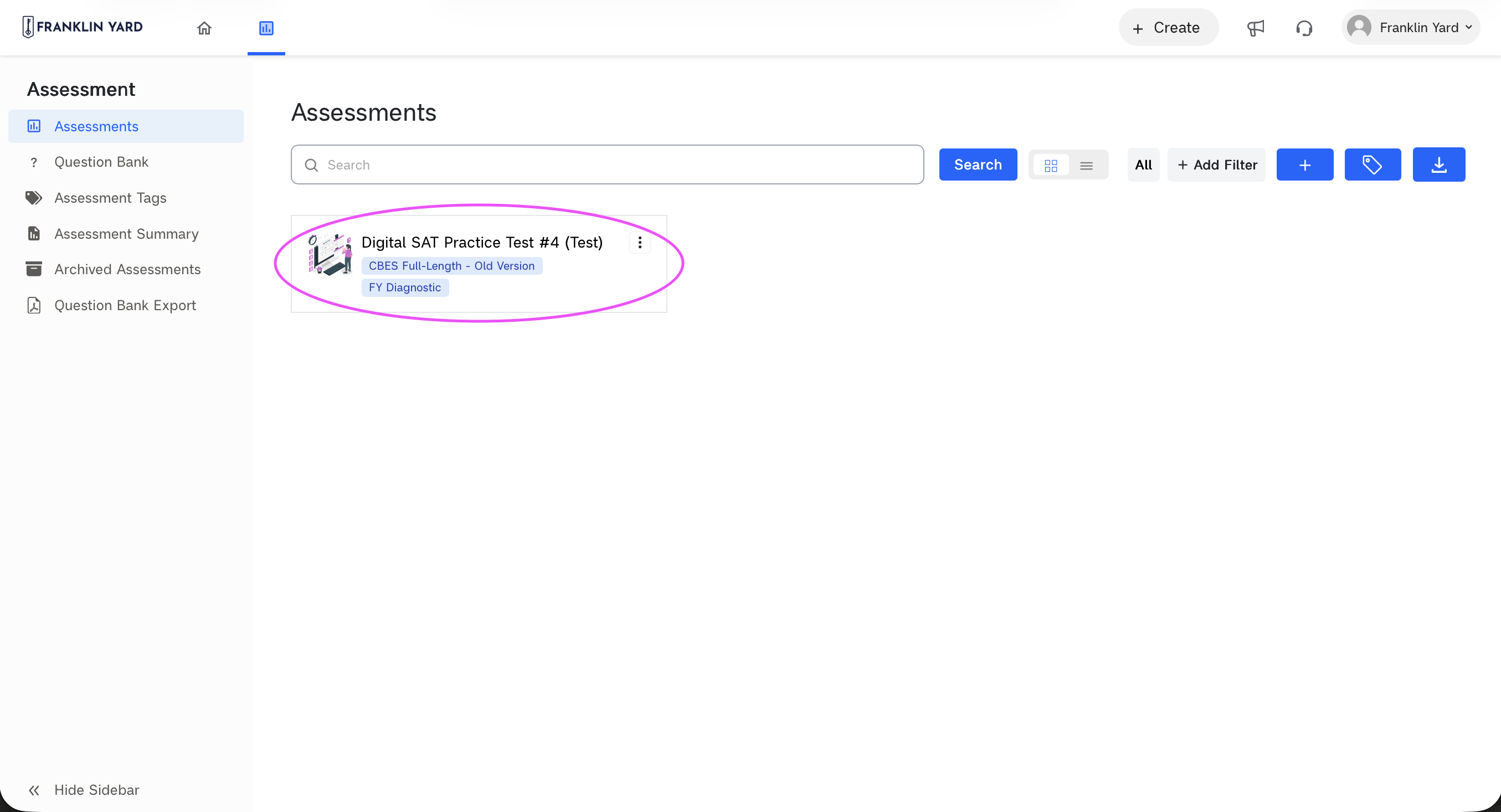
Scores will be accessible under the User Reports column by clicking on Review once tests are completed.
Troubleshooting
Most testers will have an uneventful test. Here's what to do, in order. If anything stops a tester from testing for more than a couple of minutes, call Josh.
Common fixes
-
Retry: For issues in the first couple minutes of testing, reload, restart, or switch to a new device and have the tester start fresh: use the same test link, and enter the same name and school email.
-
Refresh: Most issues during testing can be solved with a page refresh. Tester progress should be saved.
-
Save & Exit: More intractable issues may require clicking the three dots labeled "More" at the top right and choosing "Save & Exit". This redirects to a screen where testers can resume "In Progress" assessments.
-
Restart or Switch: If issues persist and testers need to close their browser, restart their device, or switch devices, they will need to regain account access a different way: they'll navigate to https://franklinyard.edison.so/signin, click "Forgot your password?", and follow the link in their email to set a new password and then log back in. They'll be able to resume the test once logged in.
-
Call Franklin Yard: Those steps will solve the majority of issues. For any issues that persist, call us. If we can't resolve an issue immediately, we'll provide for the tester to test at home.
Specific issues and how to resolve
-
The timer shows zero or "time expired" when the tester starts the test.
Have the tester close the tab, reopen the link in Chrome, and enter the same name and email. The test allows a second start. If it happens again, move the tester to a loaner device and refer to Common Fix 4. If it happens a third time, call Josh.
-
The page won't load, or only half of it loads.
Check that the device is on the school wifi. Reload the page. If that doesn't help, restart Chrome completely or switch to a new device. If the test is well-underway, return to https://franklinyard.edison.so/signin instead of using the testing link and refer to Common Fix 4.
-
The screen freezes mid-test.
Reload the page. The platform saves answers as the tester goes and should bring them back to roughly the same place; if the wifi dropped, the last question or two may need to be answered again. If reloading doesn't bring the test back, restart the device or switch to a loaner and refer to Common Fix 4. If the test doesn't resume, call Josh.
-
The timer is stuck and the tester can't move on.
Reload first. If the module still won't advance, try Common Fix 3. If that doesn't work call Josh.
-
The calculator or reference sheet won't close, or its close button is off screen.
Have the tester make sure they're not excessively zoomed in on their screen, or, if on a tablet, turn the device sideways and back. If the button is still hidden, reload the page. Progress should be saved.
-
The device dies or malfunctions mid-test.
Move the tester to a loaner and refer to Common Fix 4.
-
A tester arrives late.
They can still test. Open the link and start; their timers run from when they begin. If they're so late that they'd finish well after the room is dismissed, call Josh and we'll set them up to test another time.
-
If at any point the test says "Attempts Exhausted" after resuming, go into the proctor account and add an attempt to the tester's enrollment under "Users".
-
If at any point the test says "Page not Found" after refreshing or hitting the browser 'back' button, hitting the back button again or reloading the page once more often redirects to the dashboard, where the assessment will be visible, ready to resume.
Contacts
- During the test
- Call Josh, 610-773-7992. First point of contact for anything that happens during the test.
- If you can't reach Josh
- Call Chloè, 610-904-8406.
- Before or after the test
- Email Franklin Yard (josh@franklinyard.com, chloe@franklinyard.com). Direct families to email services@franklinyard.com if they have questions about the test or account access.